Image generation that never leaves your computer.
Type a prompt, get a PNG. It runs on your own graphics card, so nothing you write and nothing you make is ever uploaded, logged, or reviewed. After the first download it works with the wi-fi off.
The builds aren't signed — signing certificates cost money every year and this is free — so your computer will warn you once when you open it. Here's exactly what it says and what to click.
The AppImage is so much bigger than the .deb because it bundles its own webview runtime so it runs on any distro; the .deb uses the system's instead.
The app was called local-img until recently, and the file you download still is — so does the app once it's installed, and so does the security warning below. The rename lands in the next release.
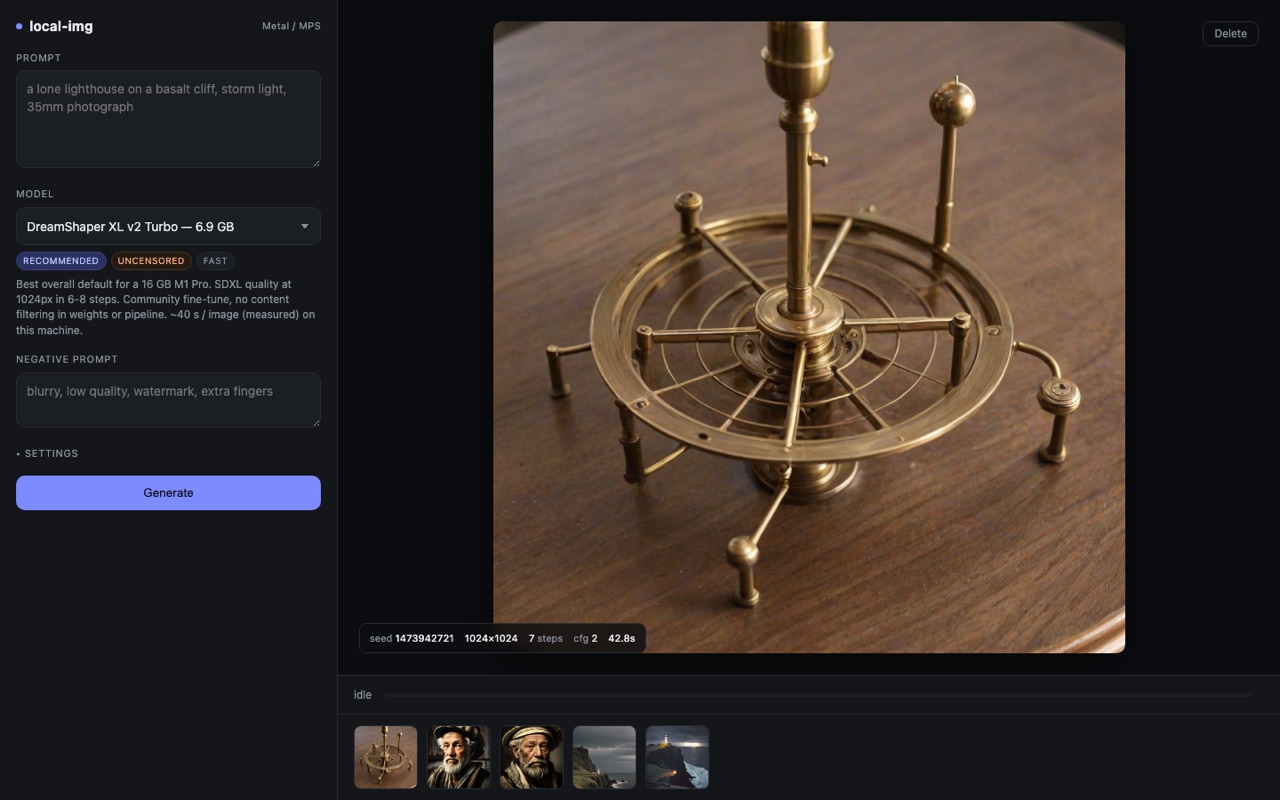
It sets itself up. You don't install anything else.
Most tools like this ask you to install Python, then a package manager, then a list of libraries. This one brings its own and puts them somewhere it can clean up after itself.
-
It downloads its engine
About 1 GB on a Mac, or up to 7 GB on a PC with an NVIDIA card, where the graphics libraries are much larger. This happens once. You'll see a progress bar, and you can close the window and come back.
-
It measures your machine
It reads your chip, how much memory your graphics card will actually hand over, and how much disk is free — then shows you only the models that will genuinely run, with the rest listed alongside the number that blocks them. Nothing about your machine is sent anywhere.
-
It recommends one model, and asks before downloading it
Models are between 2 GB and 34 GB, so it tells you the size and waits. From then on you're generating images, and the app works offline.
Memory decides everything.
You don't need to know any of this — the app works it out and hides what won't fit. It's here because it's the honest answer to "will this work on my laptop?"
| Model | Download | Needs | Per image |
|---|---|---|---|
| DreamShaper 8 | 2.1 GB | 3 GB GPU · 8 GB RAM | ~18 s |
| SD Turbo | 2.6 GB | 3 GB GPU · 8 GB RAM | ~2 s |
| DreamShaper XL v2 Turbo | 6.9 GB | 9.5 GB GPU · 16 GB RAM | ~40 s |
| Juggernaut XL v9 | 7.1 GB | 9.5 GB GPU · 16 GB RAM | ~180 s |
| Shuttle 3 Diffusion | 33.7 GB | 26 GB GPU · 48 GB RAM | ~120 s |
Ten models ship in total; these are five of them. Times in this colour were measured on an M1 Pro — the rest are estimates until the app has watched your machine run that model three times, after which it uses your own numbers and says so. Only one NVIDIA card has been measured (an RTX 3050 Laptop), and it came in about twice as slow as predicted — read an NVIDIA estimate as optimistic until the app has your own numbers.
Your computer will stop you once. This is how to get past it.
Both systems warn about apps from developers who haven't paid for a signing certificate. You tell it to go ahead once, and your machine remembers.
macOS
“Apple could not verify ‘local-img’ is free of malware that may harm your Mac or compromise your privacy.”
Click Done — not Move to Trash. Then open System Settings → Privacy & Security, scroll down to the line about local-img, and click Open Anyway. Control-clicking the app and choosing Open used to work instead; macOS 15 removed that shortcut, so System Settings is now the only way through.
Windows
“Windows protected your PC.”
Click More info, which reveals a button, then Run anyway. The button is hidden until you click More info, which is the part most people miss.
Nothing here is hidden.
If you'd rather not click past a security warning, or you want to read what you're running first, the whole thing is on GitHub and installs from source on any machine with Python 3.11 or 3.12.
# macOS or Linux
git clone https://github.com/giancarlobrusca/local-img
cd local-img
./setup.sh   # Python venv + libraries, a few minutes
./run.sh     # → http://127.0.0.1:7788